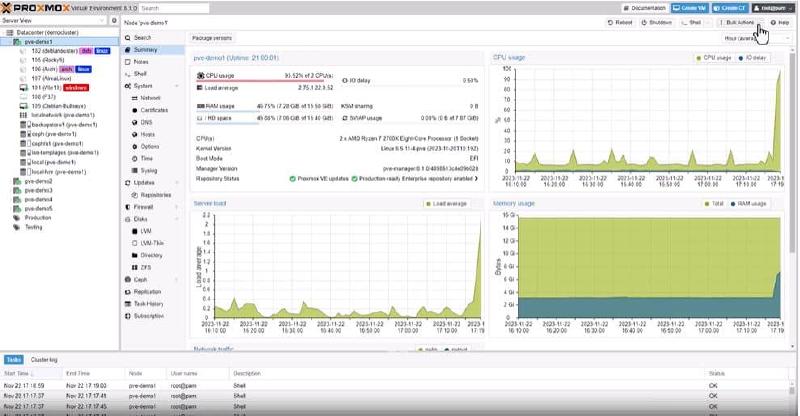
Fixing Network Issues in Proxmox After Adding an NVMe SSD
Overview
Adding an NVMe SSD to a Lenovo ThinkCentre M700 running Proxmox can change network interface names due to PCI enumeration shifts. When this happens, OPNsense (running as a Proxmox VM) may lose access to its network interfaces. This guide explains how to diagnose and fix the issue.
Step 1: Identify Network Interface Changes
Check available network interfaces on the Proxmox host
Run:
ip link show
If your primary NIC was previously enp1s0 and is now enp2s0, the system has renamed it.
Step 2: Update Proxmox Network Configuration
If the network adapter name has changed, update the Proxmox configuration.
Edit /etc/network/interfaces
On the pve1 node shell:
nano /etc/network/interfaces
Locate the section configuring vmbr0, which may look like this:
auto vmbr0
iface vmbr0 inet static
  address 192.168.1.2/24
  gateway 192.168.1.1
  bridge-ports enp1s0
  bridge-stp off
  bridge-fd 0
Change enp1s0 to enp2s0:
auto vmbr0
iface vmbr0 inet static
  address 192.168.1.2/24
  gateway 192.168.1.1
  bridge-ports enp2s0
  bridge-stp off
  bridge-fd 0
Save and exit (Ctrl + X, then Y, then Enter).
Restart networking
Apply the changes:
systemctl restart networking
If the issue persists, reboot Proxmox:
reboot
Step 3: Verify Network Settings in Proxmox UI
- Go to
Datacenter → Your Node (e.g., pve1) → Network. - Ensure
vmbr0is usingenp2s0. - If the network is still down, remove and re-add the network bridge in the Proxmox UI.
Step 4: Reconfigure OPNsense Interfaces
Once Proxmox is correctly configured:
- Start the OPNsense VM.
- Open the console.
- Select
Option 1: Assign Interfaces. - Reassign
LANandWANto the correct interfaces. - Save and exit.